A calm screen time app for iPhone

Take some of your hours back.

Shells shows you where your phone time really goes, then helps you use it a little less. Start with a gentle reminder or a short pause, and only go firmer when you need to.

  • Built on Apple's Screen Time. Your screen time stays on your iPhone.
  • We don't sell your data to advertisers.
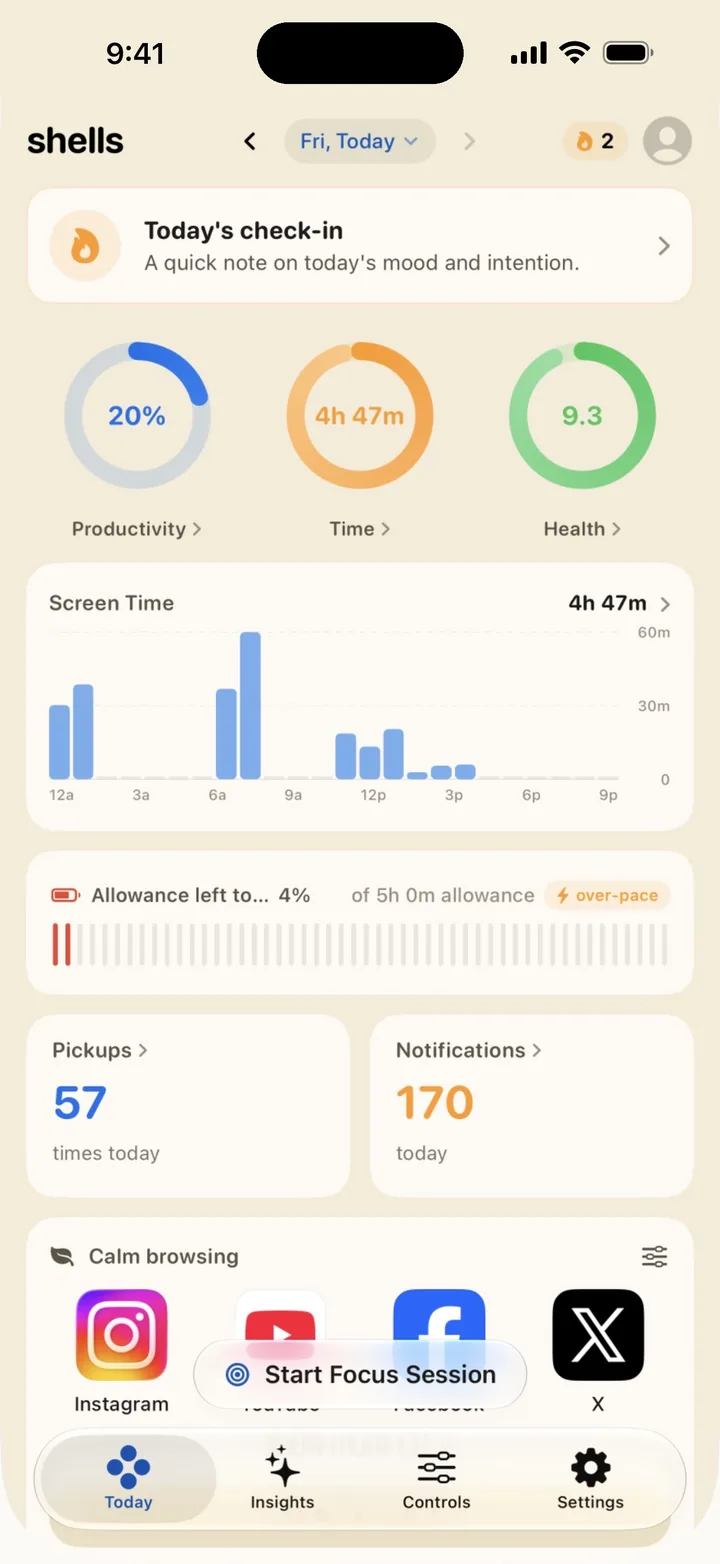
The Shells Today screen: rings for productivity, time and health, an hour by hour screen time chart, and counts of pickups and notifications.
Otis the otter, the Shells mascot, waving hello.

Sound familiar?

Almost everyone has a phone habit they'd like to change. Here are a few common ones, and how Shells helps with each.

  • “Another hour in bed, scrolling.”

    Have your chosen apps close in the evening, so the last hour before bed is yours again.

  • “One app eats my whole day.”

    Give it a daily allowance. Once the time is used up, it closes until tomorrow.

  • “My phone keeps pulling me out of work.”

    Close distracting apps during your work hours, so you can stay focused.

  • “I open apps without thinking.”

    Add a short breathing pause before an app opens. It's just enough time to choose.

See your day clearly

Know where your time goes

Shells turns your Screen Time into a simple picture of your day, so you can spot the apps and moments that pull you in.

  • Three rings show your productivity, your screen time and a health score for the day.
  • An hour by hour chart, plus how many times you picked up your phone.
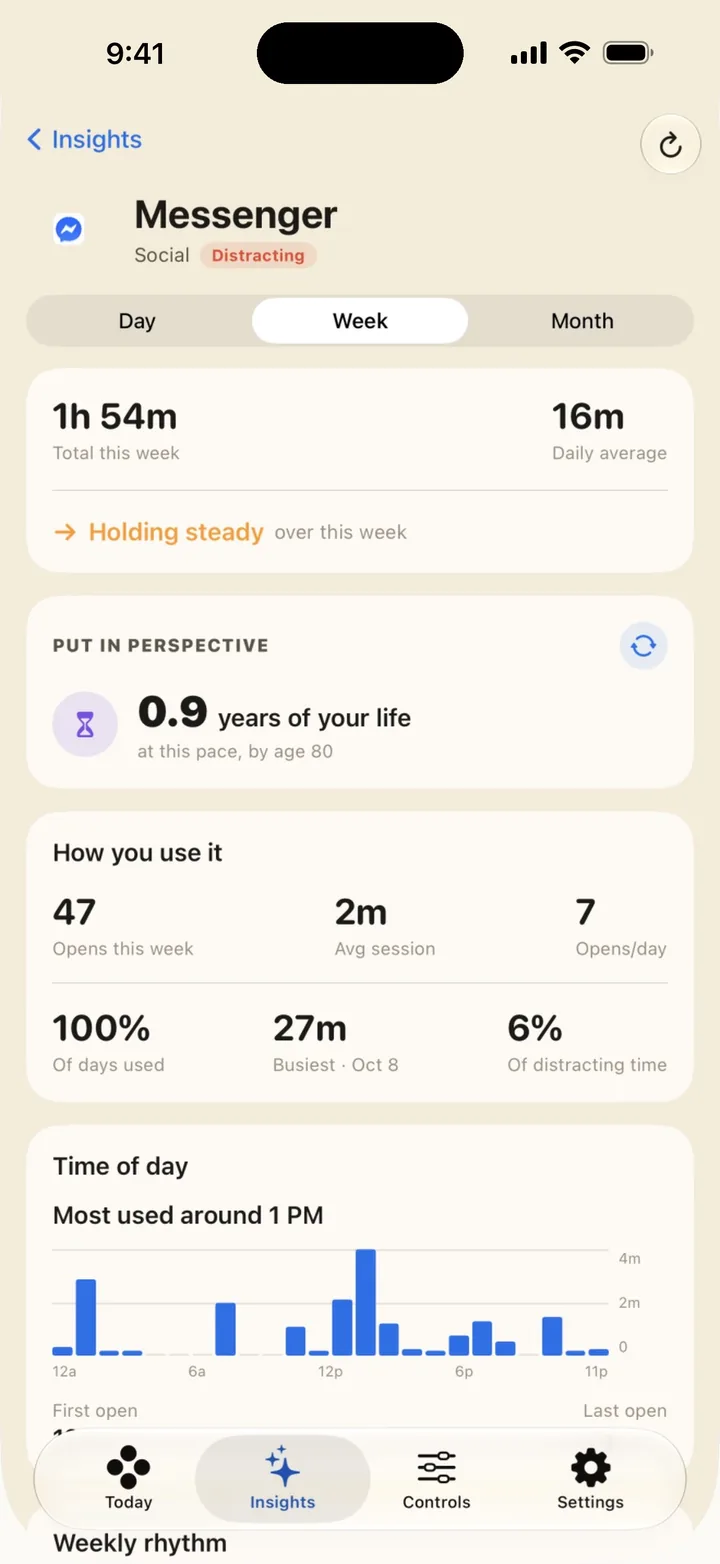
  • Tap any app to see when you use it most, and what it adds up to over a lifetime.
  • If you like, a timeline of your day shows the places where you use your phone the most.
An app's page in Shells: time spent this week, how many years of your life it would add up to at this pace, how often it was opened, and the time of day it is used most.

Take a breath

A little pause before you scroll

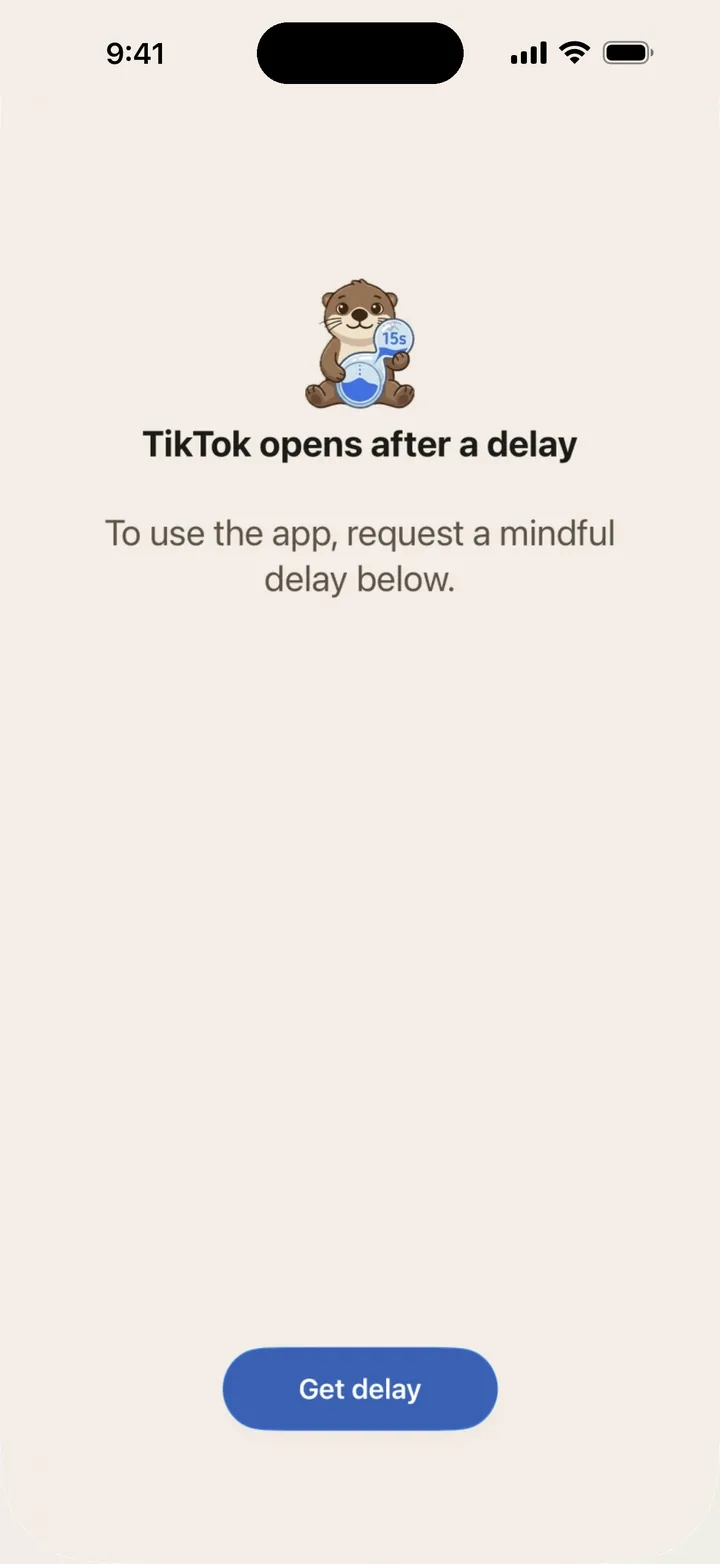
When you open an app you've paused, Shells shows you a calm screen first. Take a 15 second breather, then choose how long you'd like the app for. Or decide you didn't need it after all.

  • Breathe

    A slow, calm breath for 15 seconds.

  • Move

    A few squats, push-ups or a plank. Your camera counts the reps.

  • Walk

    A short walk, or reaching your step goal for the day.

The calm screen Shells shows when a paused app is opened: Otis the otter with a 15 second timer, the words TikTok opens after a delay, and a Get delay button.

Make it yours

From a gentle nudge to a firm block

Everyone's habits are different, so Shells lets you mix and match. Start gentle, and only go firmer for the apps that need it.

Light

Gentle reminders. Nothing gets blocked.

  • Soft NudgesA heads-up when you're close to your daily goal, and milestones as your day adds up.
  • Daily check-insA quick note on your mood and what you'd like from today.
  • Reach alertsA kind word when you keep reaching for an app you've paused.

Medium

A short pause before an app opens.

  • Mindful PausesBreathe for 15 seconds, then pick how long you'd like the app for.
  • Exercise UnlockA few reps first, counted by your camera.
  • Steps UnlockTake a little walk first, then scroll.

Strict

Apps stay closed when you need them to.

  • App LimitsA daily allowance. When it's used up, the app closes until tomorrow.
  • Scheduled BlocksClose apps at set times, like 9 to 5 on weekdays.
  • Morning BlockKeep your phone down first thing, apart from the essentials you pick.
  • Location BlocksBlock apps at the places you choose, like work or the gym.
  • NFC LocksApps stay locked until you tap your own NFC sticker.

And a few extras

  • Focus SessionsBlock apps for a set time, with a countdown on your Lock Screen.
  • Calm browsingOpen Instagram, YouTube and more with the parts you choose hidden, like the feed or Reels.
  • Holiday ModeEase off your controls while you're away. They switch back on by themselves.
  • WidgetsSee how much screen time you have left today, right on your Home Screen.

A few questions

Will Shells lock me out of my apps?

Only if you want it to. You can start with gentle reminders or a short pause, and your apps stay open. When you're ready, you can make things firmer for the apps that need it.

What if I really need an app that's blocked?

If a daily limit is blocking an app, Emergency access opens it for 5 minutes, then it locks again by itself. You can also change or remove any of your controls in the app.

Do I need an account?

No. Every control works without one. You can sign in with Apple later if you'd like the Insights tab.

How does Shells see my screen time?

It uses Apple's own Screen Time tools. You give Shells permission once during setup, and your screen time stays on your iPhone. We don't sell your data to advertisers. The full details are in the Privacy Policy.

Which devices does it work on?

Shells is made for iPhone and works on iOS 18 or later.
Ready to take some hours back?

Download Shells, pick the habit you'd like to change, and set up your first control in a few minutes.

Download on the App Store
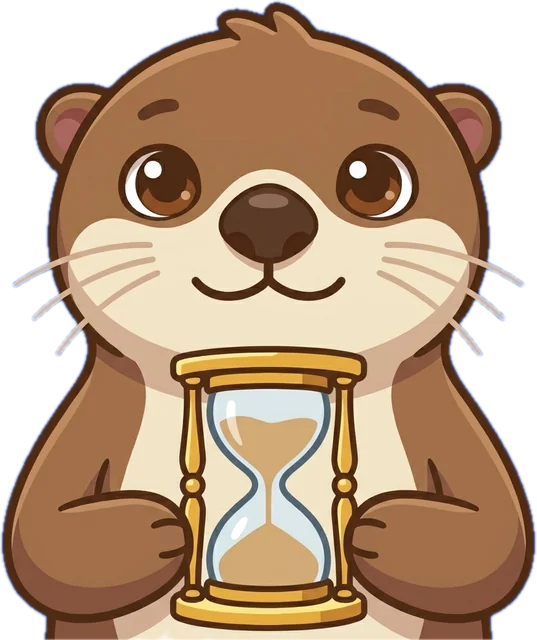
Otis the otter holding an hourglass.